SaaS Product Events Data
SaaS Product Events Data
The SaaS Product Events Data Pipeline provides business users (Product Analysts, Growth PMs, Core Product PMs, and others) with a set of fact and mart tables capturing user ans namespace activity for our SaaS Product (Denomas.com).
The versatility of this table allows business stakeholders to perform a large array of analyses, such as the examples provided below.
Type of Analysis that can be performed
- User Journey Analysis: See how often different product stages are used by the same namespaces. See what stages are used in combination.
- Namespace Stage Adoption: Evaluate how often new namespaces are adopting stages such as ‘Create’ and ‘Verify’ within their first days of use.
- Stages per Organization: Identify how namespaces adopt stages within their first days and how this correlates with paid conversion and long-term engagement.
ERD and Data flows and table description:
The Data Team maintains these prep and fact tables at the base of the SaaS product event data lineage:
- prep_event_all: A view of all prep_event partitions at the event-level grain. That means you will find in this table one row per event, an event being for example a issue created or a ci_pipeline started.
- fct_event: A table at the event level which contains flags on whether events are included in xMAU figures. Contains foreign keys to easily join to DIM tables or other FCT/MART tables for additional detail and discovery. This model contains all historical data and therefore is loaded incrementally to avoid query timeouts.
- downstream lineage here
Under the hood, all these models are created through this dbt model named prep_event.
prep_event model creates a monthly partitioned table. Looking at Snowflake you can see one schema per month:
So that means we have one prep_event table per month. In dbt, you can see that the schema definition is defined in the dbt_project.yml.
In the query, you also see the WHERE statement that limits the data to a monthly subset of data.
Here is an ERD of the atomic event fact tables. The diagram relating to SaaS gitlab.com data is the lower of the two:
The list of events currently tracked in these tables is available here. Some new events can be added fairly easily, please see documentation below.
How to add new events to this table ?
The whole table complexity is included in the prep_event table (dbt documentation available here)
This model is a bit long and aggregates/unions data coming from a lot of different tables. Nevertheless, adding a new event is a rather easy operation to perform. Here are the steps to follow:
Denomas Data Team Workflow
Everything starts with an issue, so the first step is to open an issue and a MR in our Data Project. Once on the branch you created with the MR, please follow the following steps:
Add the event details to gitlab_dotcom_xmau_metrics_common
Create an MR and add the event details to gitlab_dotcom_xmau_metrics_common. Include the event name, stage, group, section and if the event is part of SMAU, GMAU or UMAU. Fill in the information by following the table order.
If this step is omitted the event details will not be populated in the intended tables resulting in missing data.
Add the CTE that will contain the data
If the data you want to include in the table is fully captured (without any filtering needed) in a prep table, this is a rather simple action to perform. You need to just add a new tuple in the simple CTE macro showed here:
{{ simple_cte([
    ('prep_ci_pipeline', 'prep_ci_pipeline'),
    ('prep_action', 'prep_action'),
    ('prep_ci_build', 'prep_ci_build'),
    ('prep_deployment', 'prep_deployment'),
    ('prep_issue', 'prep_issue'),
    ('prep_merge_request', 'prep_merge_request'),
    ('prep_note', 'prep_note'),
    ('dim_project', 'dim_project'),
    ('dim_namespace', 'dim_namespace'),
    ('prep_user', 'prep_user')
]) }}
If the data you want to capture is a subset of an existing table, the operation is slightly more complicatedm you need to:
- First, add the table containing the event you want to capture to the simple_cte macro as described above
- Then, create another CTE below, which would be filtering the rows from the table you called in the first action.
An example would be that you want to select only succesful CI pipelines. You know that this event is captured in the prep_ci_build table and that you just need to filter on the failure_reason column.
So the first step would be to add (if it is not already the case) the prep_ci_build table to the simple_cte macro.
Then you need to add a new CTE that filters on the failure_reason column:
, successful_ci_pipelines AS (

    SELECT *
    FROM prep_ci_pipeline
    WHERE failure_reason IS NULL

)
Add an entry in the JSON event_ctes
The JSON will look like that:
  {
    "event_name": name of the event,we recommend having an action name like issue_creation,
    "source_cte_name": cte name containing the data you want and that you defined earlier,
    "user_column_name": column containing the user_id, you should refer to dbt to get this info,
    "ultimate_parent_namespace_column_name": column containing the ultimate parent namespace ID, you should refer to dbt to get this info,
    "project_column_name": column containing the ID of the project, you should refer to dbt to get this info,
    "primary_key": primary key of the CTE
    "stage_name": the name of the stage of the DevOps Lifecycle this event belongs to e.g. 'secure', 'monitor'
  }
Make sure that the CTEs added in this step have all of the above fields when available (user_column_name, ultimate_parent_namespace_column_name, …). These fields aren’t available for all events and should be set to “NULL” when not applicable, e.g. "project_column_name": "NULL".
In adition, the below fields must be present in the added CTEs:
- dim_plan_id. To track the plan at the moment of the event
- created_date. Date in which the event was created
- created_at. Timestamp in which the event was created
For an example of the necessary fields that the prep tables need to have, review the prep_cluster_agent model.
Test your MR
The easiest way to test your changes would be to do it through our CI Pipelines capabilities. The first step would be to clone the production database (example below). This takes from 10 to 15 minutes.
Then, you need to run a dbt job as shown in the small video below:
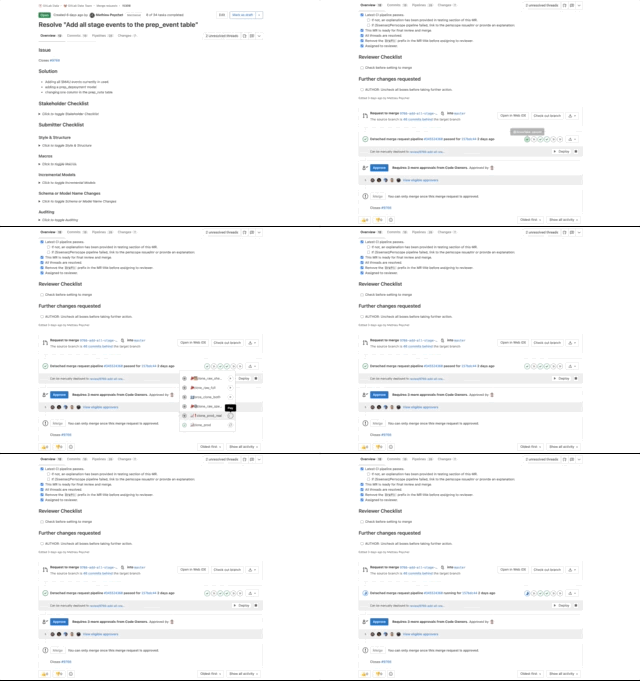
Run the dbt job specify_l_model by clicking on the ⚙️ then add the following variable:
- key:
DBT_MODELS - value:
prep_event
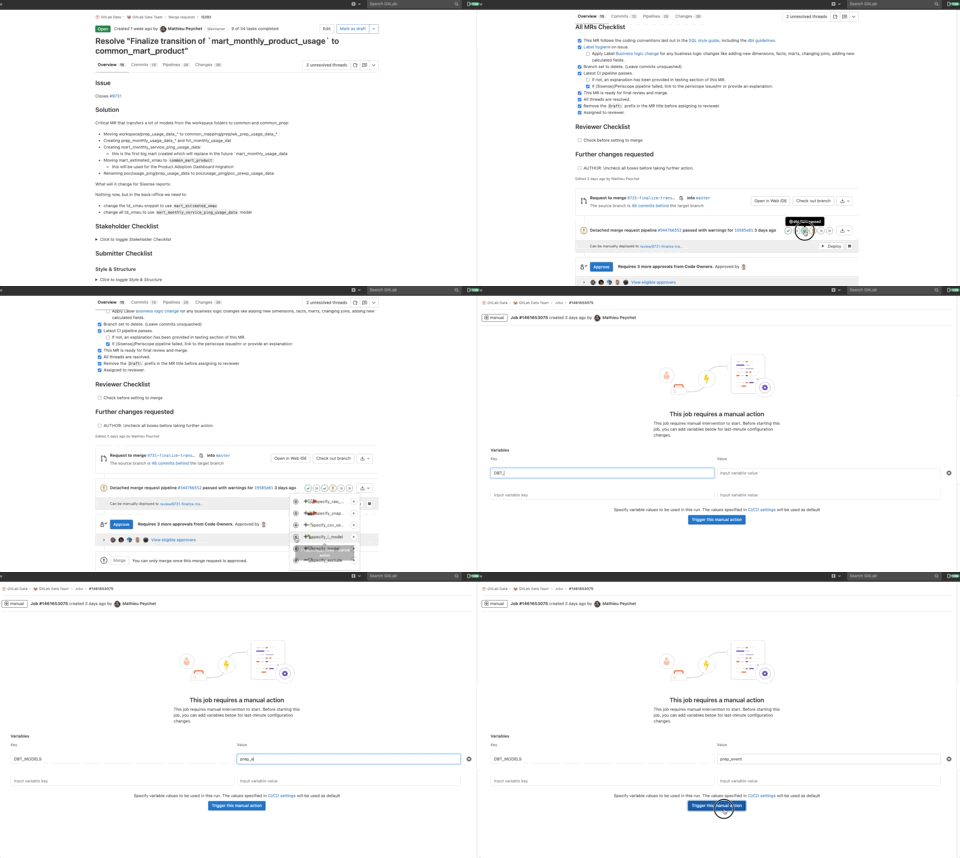
Once the jobs have run succesfully, ask for a review of a team member of the R&D Team.
Don’t hesitate to ask any questions regarding your MR to Data Team members either through Slack #data channel or through the Merge Request itself.
Backfill the data
Once the data is merged, you need to backfill the prep_event data. For this, please ask a Data Engineer to trigger the Airflow Dag called t_prep_dotcom_usage_events_backfill which will run the backfill for the last 3 years of data.
Note: Usually individual partitions of the backfill fail. In this case, you can re run the failed partitions by clearing their status. This makes the process more time and resource efficient as it avoids resetting the entire DAG.
Full refresh
Finally, run a full refresh on +fct_event. This way the backfilled data will run through the necessary data models.
008c4f1a)
