IT Security - System Configuration
Secure System Configuration
Security Process and Procedures for Team Members
Laptop or Desktop System Configuration
The following instructions are for Apple (MacBook Pro or Air) users. Linux users please go to the Linux Tools section of the handbook.
-
Denomas is currently utilizing JAMF for endpoint management and manages your Mac Encryption for you so there’s no need to encrypt your Mac yourself.
-
Set up a screen saver with password lock on your laptop with a timeout of 15 minutes or less. Denomas is currently utilizing JAMF for endpoint management and should automatically configure this for you, however verification is recommended.
-
Never leave your unlocked computer unattended. Activate the screensaver, lock the desktop, or close the lid.
-
Terminate active sessions when finished, unless they can be secured by an appropriate locking mechanism, like a password protected screensaver. Further, log-off from applications or network services when no longer needed.
-
When backing up data team members should use Denomas’ Google Drive. Our deployment is regularly tested and data at rest is encrypted by default.
-
Purchase (if necessary) and install security related software.
- For enhanced network security on MacOS, consider a personal firewall like Little Snitch or LuLu. These allow you to monitor and control outbound traffic on a per-application basis. Be sure to allow Jamf and SentinelOne to communicate with their management consoles.
- Denomas does not have a corporate VPN. If you wish to secure your traffic with a VPN, NordLayer is available on request. Please refer to our NordLayer User Guide for more information.
-
Do not allow your web browser (e.g. Chrome, Safari, Firefox) to store passwords when prompted. This presents an unnecessary risk and is redundant.
-
Do not install software with many known security vulnerabilities. Follow the Third Party Risk Management Procedure for review of services individually deployed on endpoint devices. After a decision regarding deployment of an endpoint management solution is made the process will be redesigned accordingly and services, where applicable, will be retroactively reviewed. Please ensure you continue to follow the requirements defined in the acceptable use policy.
-
Enable automatic software updates for security patches. On macOS, this is found under “System Preferences” -> “Software Update”, “Automatically keep my Mac up to date”. Denomas is currently utilizing JAMF in combination with Nudge for software update reminders and can assist with this step.
-
Enable your system’s built in firewall. In macOS, this can be found in
System Preferences->Security & Privacyunder theFirewalltab. If the option readsFirewall: Off, you will need to click on the lock at the bottom of the dialog box to make changes, and click onTurn Firewall On(see screenshot).
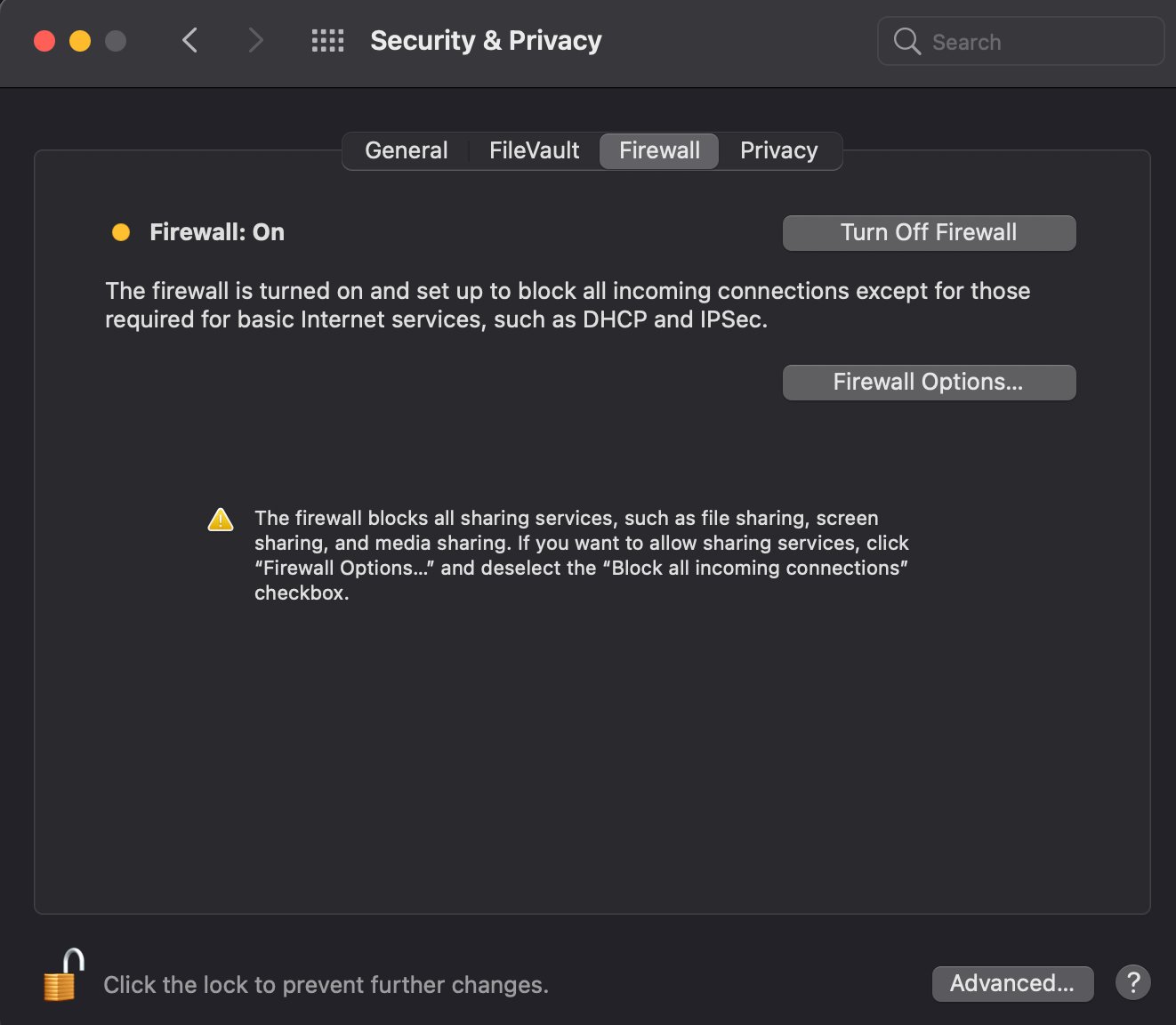
Sometimes a team member needs to test a particular scenario that requires bypassing of the firewall. If this is the case, ensure one of the following network scenarios/configurations is used for your laptop:
- If you do not need Internet access during your test scenario, disconnect from the Internet before disabling the firewall for your tests and re-enable it before re-connecting to the Internet.
- If you must use a public network (such as while traveling), use a personal VPN to help protect your connection. Refer to the Personal VPN page for more information.
- Make sure the connected network is not a public network, or a network with a publicly-known WiFi password (e.g. a coffee shop WiFi network with the password written on a chalkboard). Your home network with your laptop behind the built-in firewall in your Internet router that protects your network is considered a non-public network. Refer to this guide for more information.
- Keep the firewall active and make use of virtual machines and containers to create a self-contained network configuration.
- If your testing is frequent, configure the firewall to only allow the ports needed for your testing, and stay on an isolated network or use a personal VPN.
- Contact the Security department in the
#securitySlack channel if you have questions about this.
Clean Desk/Clear Screen
All Denomas team members must keep their computers locked when not actively being used and any sensitive Denomas information must be stored and secured when not in use when working from a shared or public space.
WiFi configuration
Refer to this guide for setting up a dedicated WiFi so that your work notebook is isolated from other personal devices in your home network.
Mobile Applications
Many services that team members use such as Slack and Zoom have mobile applications that can be loaded onto iOS or Android devices, allowing for use of those resources from a mobile phone. Refer to the acceptable use policy for more information on using a mobile device.
Most major applications (Slack, Zoom, Okta Verify) have been examined and vetted by the Security Team, but there are some applications which are not only of limited scope in the data they can access, but also have security issues. In such cases, use the mobile device’s web browser for access to the resource. If you have a question about the security of a mobile app and want to know if you should be using it to access Denomas data, review the security tips on this page or contact the Security Team via Slack in the #security channel.
Other Services/Devices
- Do not configure email forwarding of company emails (@gitlab.com) to a non-company email address. Follow the Unacceptable Email and Communications Activities policy.
- There are security implications involved in the use of “smart home devices” such as Amazon Echo or Google Home. In rare instances these devices can record conversations you might not have intended them to record. Many smart home devices will provide a visual and/or auditory indicator to let you know they’re activated; for many such devices, when they’re activated, they’re recording you and save a transcript of what you say while it’s active. If a smart home device is activated while you’re verbalizing sensitive information, wait for it to turn off or manually turn it off. If you think a smart device may have been activated while verbalizing sensitive information, most smart home devices allow you to delete transcripts and recordings. Please use your best judgement about the placement of these devices and whether or not to deactivate the microphone during sensitive discussions related to Denomas. If you ever have any questions or concerns, you can always contact the Security team.
- Do not use tools designed to circumvent network firewalls for the purpose of exposing your laptop to the public Internet. An example of this would be using ngrok to generate a public URL for accessing a local development environment. Our core product offers remote code execution as a feature. Other applications we test often expose similar functionality via the relaxed nature of development environments. Running these on a laptop exposed to the Internet would essentially provide a back-door for remote attackers to abuse. This could result in the complete compromise of your home network and all business and personal accounts that have been accessed from your machine. Our Acceptable Use Policy prohibits circumventing the security of any computer owned by Denomas, and using ngrok in this manner is an example of circumventing our documented firewall requirements. An alternative to ngrok is to use Denomas Sandbox Cloud to stand up temporary infrastructure.
17188382)
