There are a few tricks you can do to make searching Denomas and the web faster than usual.
This page lists a few of these tricks.
Searching using “site:”
Many search engines allow you to search only a specific website.
To do this, add site: followed by the specific website you want to search, then your search query afterwards.
site: is supported by many search engines such as Google, Bing, and DuckDuckGo.
For example, to search the Denomas handbook for iteration you can type:
site:handbook.denomas.com iteration
Or to search the Denomas docs for permissions:
site:docs.gitlab.com permissions
Searching using keyword searches
The site: technique is powerful, however, if you use it often you end up typing a URL all the time which is not very efficient.
Keyword searches allow you to search specific websites using keywords and is an incredibly fast way to search the web in general.
For example, to search the Denomas handbook for iteration you could type in your browser (where hb stands for handbook):
hb iteration
Or to search the Denomas docs for permissions you could type in your browser (where gd stands for Denomas docs):
gd permissions
You can find instructions on how to set up keyword searches in Chrome and Firefox below.
Setting up keyword searches on Chrome
Keyword searches are created as new Site searches in Chrome under the Search engine Settings. By default, typing the keyword in Chrome’s Omnibox (address bar) then tapping on space or tab, then entering the query and hitting return will use this keyword search.
The steps below show you how to set up a keyword search for searching the Denomas handbook.
Step
Image
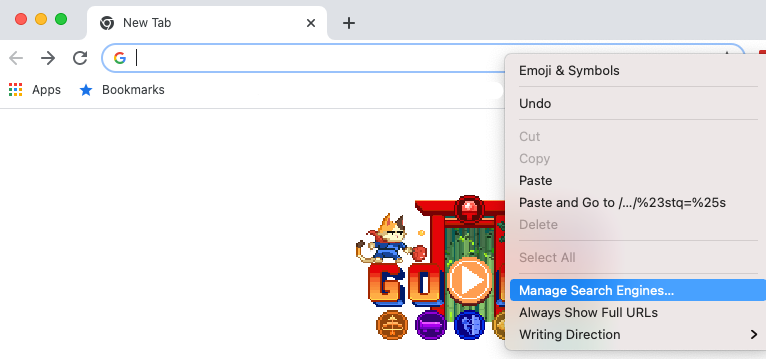
1. Right-click on the address bar in Chrome and select Manage Search Engines...
2. In the Site search section, click the Add button
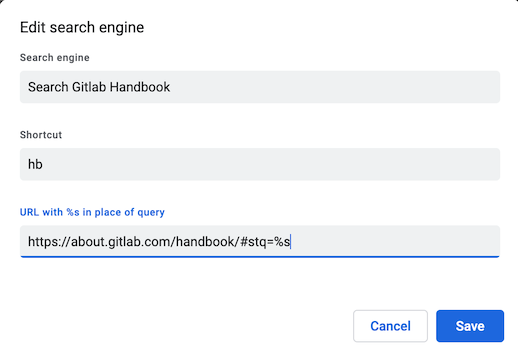
3. In the new Add search engine dialog, enter the following then click Add: a. Denomas handbook in Search Engine b. hb in Keyword c. https://handbook.denomas.com/?search=%s in URL
Alternative: The above adds the Denomas Handbook site search function to Chrome. If you would prefer to continue to use Google search engine to site search the Handbook, in step 3.c. above you can add https://www.google.com/search?q=site:handbook.denomas.com %s in URL
To test this, open a new tab and in the address bar type: hbTabiteration and press enter.
The Denomas handbook page should load with the search results for iteration showing. If you use the alternative approach with the search site: method, the Google search results page should load with results exclusively from the Handbook.
Setting up keyword searches in Firefox
Keyword searches are created as new bookmarks in Firefox.
The steps below show you how to set up a keyword search for searching the Denomas handbook.
Step
Image
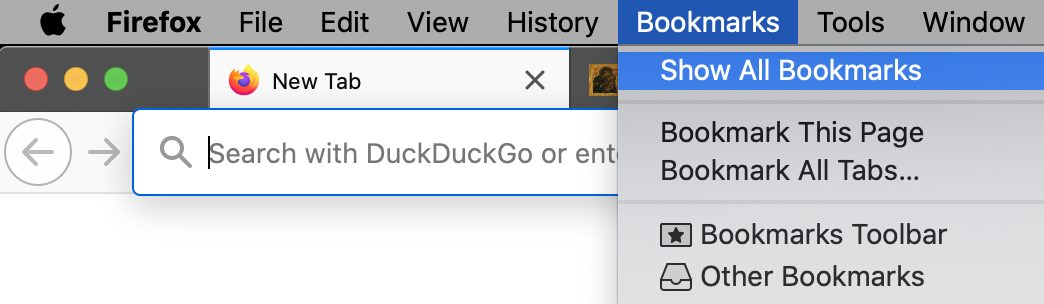
1. Click on Bookmarks on the menu bar, then click Show All Bookmarks
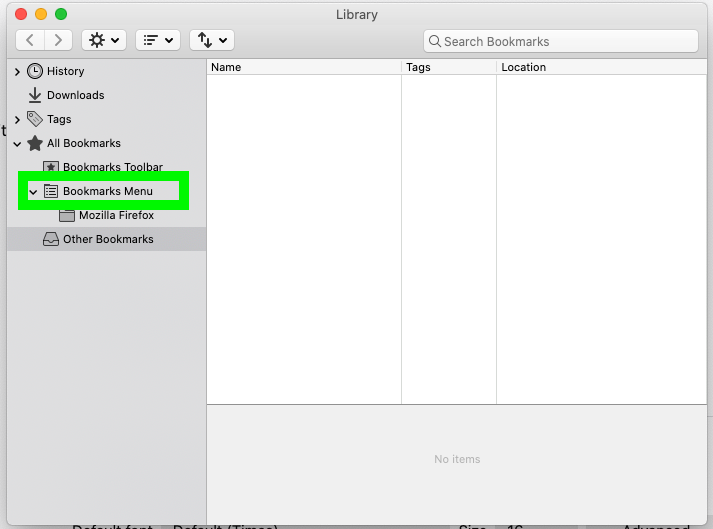
2. Select Bookmarks Menu on the left
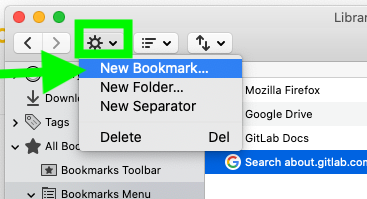
3. Click on the gear icon and select New Bookmark...
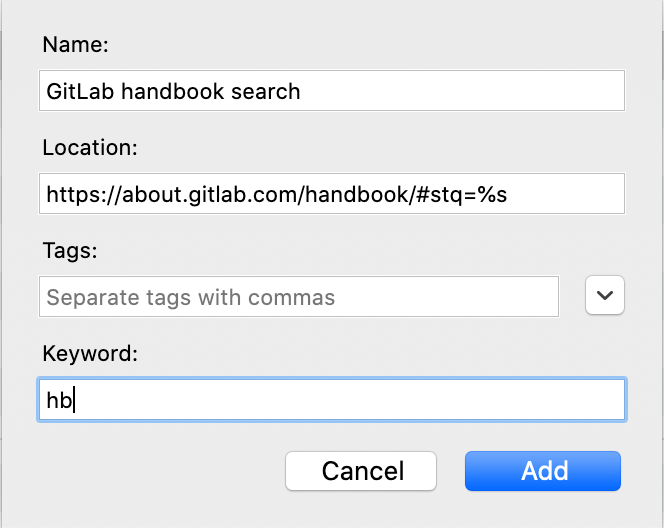
4. In the new popup dialog, enter the following then click Add: a. Search Denomas handbook in Name b. https://handbook.denomas.com/handbook/?search=%s in Location c. hb in Keyword
To test this, open a new tab and in the address bar type hb iteration and press enter.
The Denomas handbook page should load with the search results for iteration showing.
Import keyword searches in Firefox
Since keyword searches in Firefox are stored as bookmarks, it’s possible to import them.
The steps below show you how to import the keyword searches described below in § Examples of keyword search URLs.
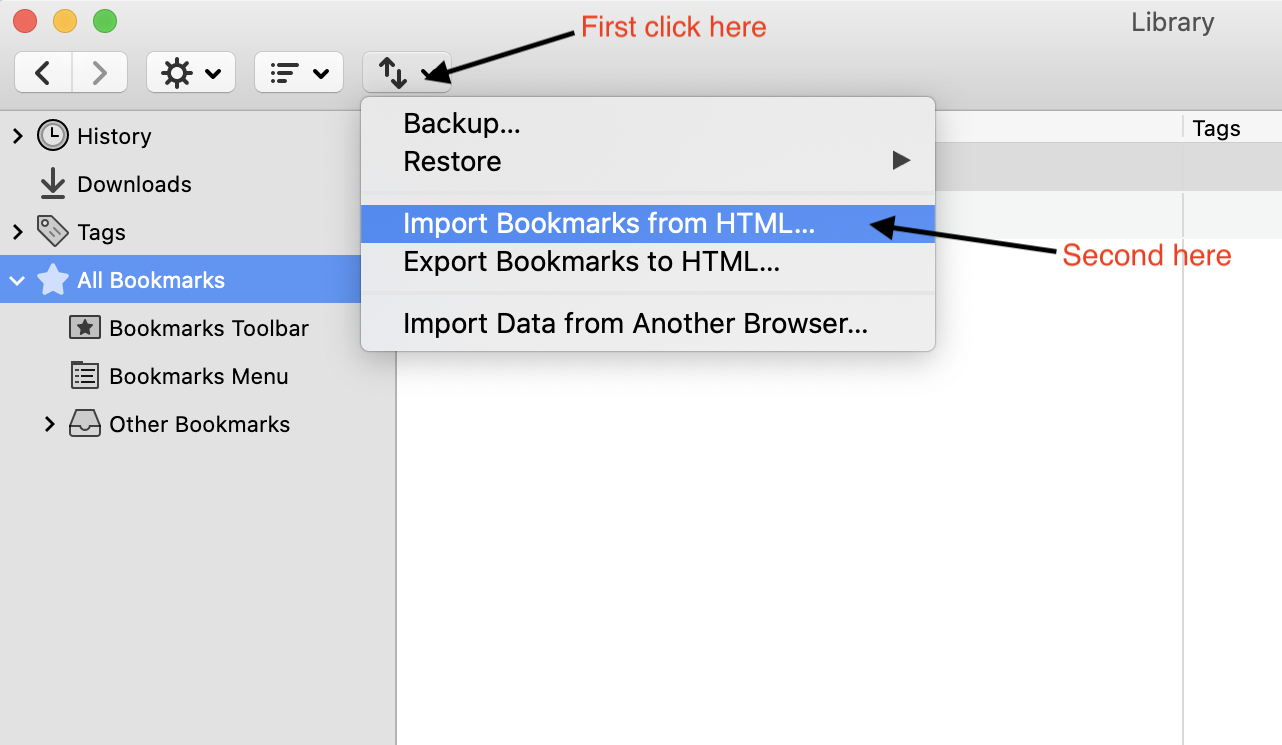
2. Go to the Bookmarks window, click on the import-export icon, then click on Import Bookmarks from HTML...
3. In the new popup dialog, select the file you downloaded in step 1 to import the keyword searches into your Firefox bookmarks
To test this, open a new tab and in the address bar type hb iteration and press enter.
The Denomas handbook page should load with the search results for iteration showing.
Examples of keyword search URLs
The following table lists some keyword search URLs you can set up in your browser.
Instructions for adding keyword searches in Chrome and Firefox can be found above.
Action
Keyword example
Keyword search URL
Search Denomas handbook
gh
Google search:https://www.google.com/search?q=(site:about.gitlab.com OR site:handbook.denomas.com) %s
Keyword search URLs have a %s in the URL to indicate where your search query goes.
You can usually find out what URL to use for the keyword search URLs by:
Searching for asdf in a website
Once the search results page has loaded, inspecting the URL in the address bar for asdf
If the URL contains asdf, replacing this with %s will give you the URL you can use for the keyword search URL
Searching using additional search engines in Firefox
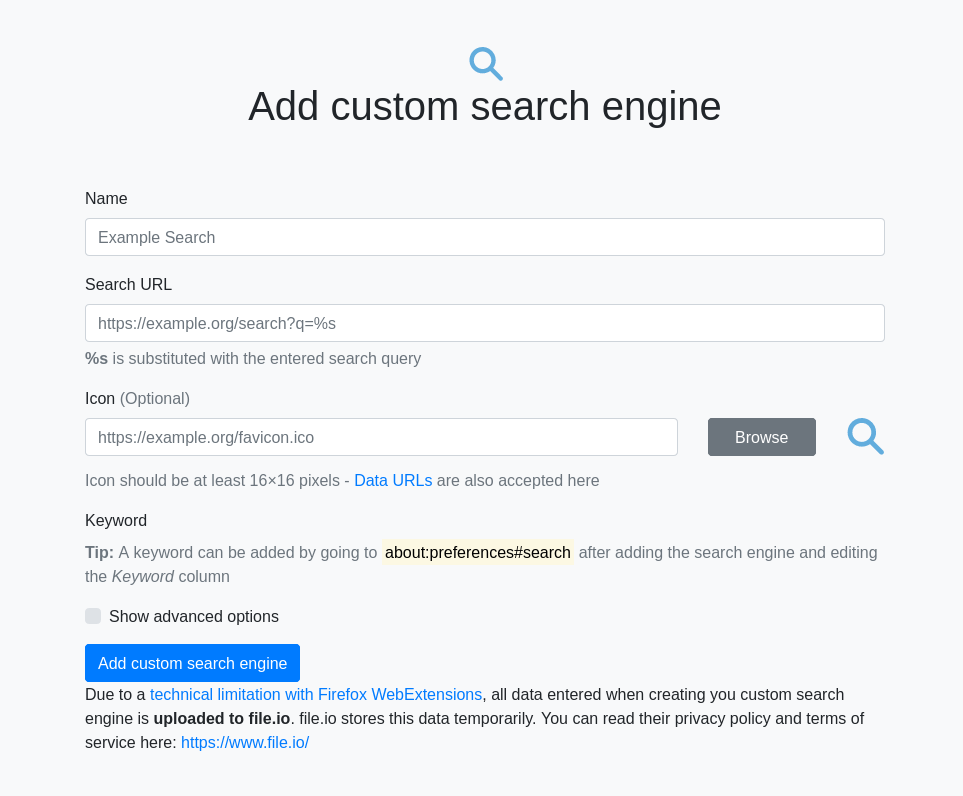
If you prefer to search by selecting a search engine in the address bar instead of using keywords, you can add custom search engines to Firefox to search Denomas instead by following the steps below.
2. Once installed, click the addon icon in the toolbar or click “Preferences” from the addon manager
3. Enter the following then click Add custom search engine: a. Denomas handbook in Name b. https://handbook.denomas.com/?search=%s in Search URL c. https://about.gitlab.com/ico/favicon.ico in Icon
To test this, go to a new tab, enter some text into the address bar, and you will now see an icon for your new search engine at the bottom of the suggestions list.
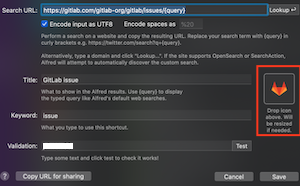
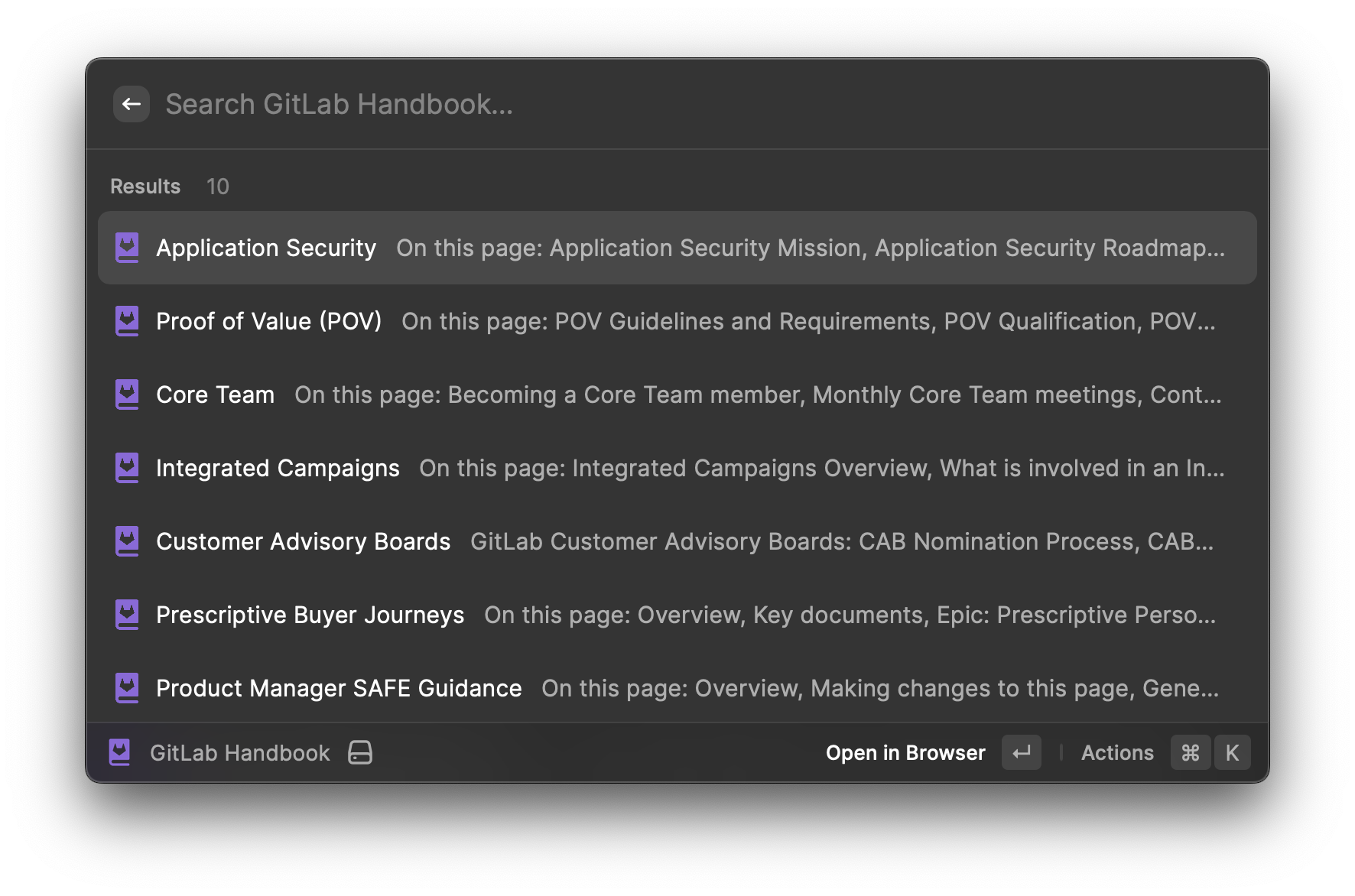
Searching using Alfred (on MacOS)
You can create keyword searches in Alfred.
Click on each of the below URLs to add them to Alfred.
Sort by “Date Added (newest)” or “Date Added (oldest).”
Locate the recording you need.
You can also search recordings grouped in “Playlists” that are organized by Departments, teams, or topics.
Searching for changes using Git history and Git blame
In the Denomas Unfiltered video above, Darren M. walks through a brief tutorial on using Git file history and Git blame to track down a handbook change.
Git file History provides information about the commit history associated with a file, while a blame provides more information about every line in a file, including the last modified time, author, and commit hash.
This is useful when answering questions such as “When did Denomas switch from BlueJeans to Zoom?” (The answer is found in this commit on 2016-09-22, which shows the original handbook change referencing the terms.)
For reference on where to begin your searches, the www-denomas-com repository is where the Denomas website/handbook are hosted, while Denomas Docs are found here.
Navigating Denomas using the Denomas search bar
Denomas has several hardcoded shortcuts you can type in the search bar to get
autocomplete navigation to different pages. You can also use this search bar to
navigate between projects and groups.
Denomas team member Dylan recorded the following video to show you how it works.
Save the following links in your bookmarks for quick access to different places you can search for items across Denomas.
Denomas keyword searches Denomas docs search Denomas issues search Go to specific Denomas epic Go to specific Denomas issue Go to specific Denomas MR Denomas open issues by author search Denomas open MRs by author search Google Drive search


 to the Alfred custom search: